AAC · routines · literacy
A voice that is always ready.
SteadyTouch is a communication app for people who do not speak, or who do not always speak. Symbols stay where they were put. Touch targets are generous and forgiving. The whole communication board — every page, every custom tile, every voice — works with no internet at all.
Coming soon to the App Store. iPad, iPhone, and Apple Watch. Requires iPadOS or iOS 17 or later.

My Voice
Built so a message survives the journey.
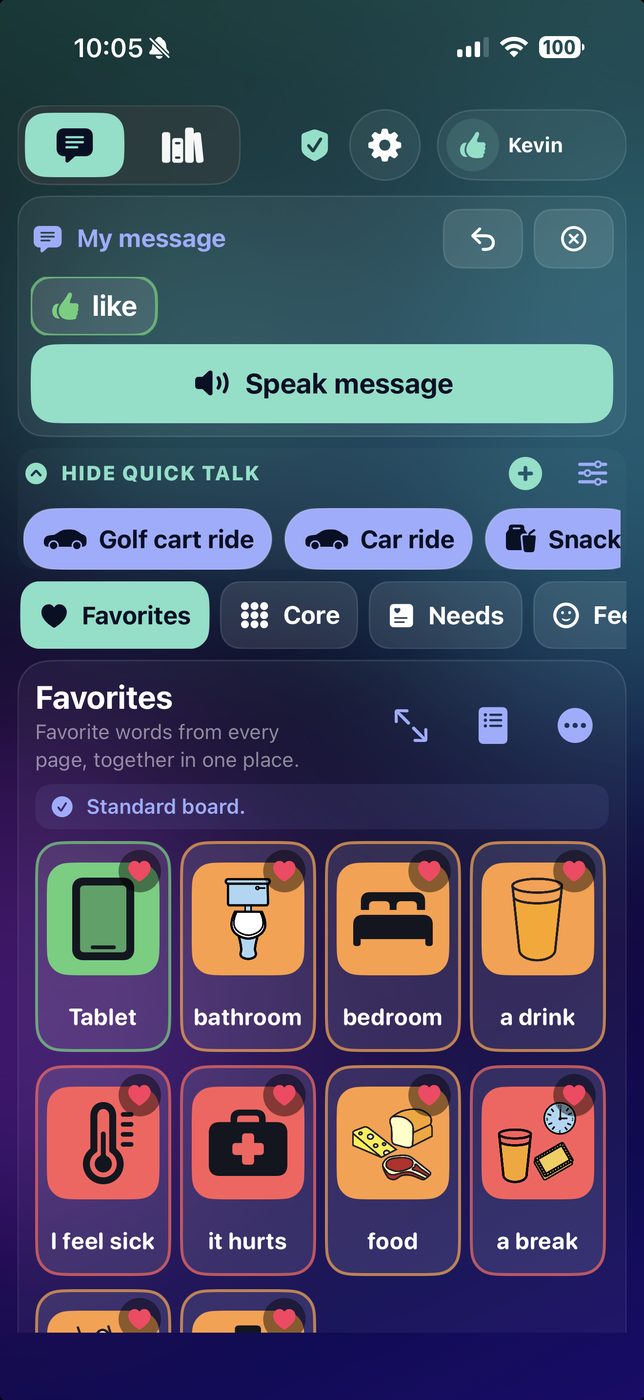
The hardest part of a symbol board is often not finding the word — it is keeping the sentence intact while you look for the next one. A message stays whole while you move between Favorites, Core, Needs, Feelings, People, Places, Actions, To-Do and your own custom pages, and the alphabet keyboard is part of the same sentence rather than a separate mode.
- Deterministic layout. Buttons stay in the same place, so motor memory can do the work instead of search.
- Always-visible Quick Talk. Yes, No, Help me, Stop, and I need a break are one tap from every page.
- Press and hold to favorite. Any tile from any page collects into Favorites, and the hold length is adjustable — or switchable off entirely.
- Gap-touch assistance. A touch that lands between two tiles can be understood without ever overriding a clear selection.
- Fully offline. The board, your tiles, your photos, and the voices need no connection.
Make it theirs
The people and places in a life, not a stock library.
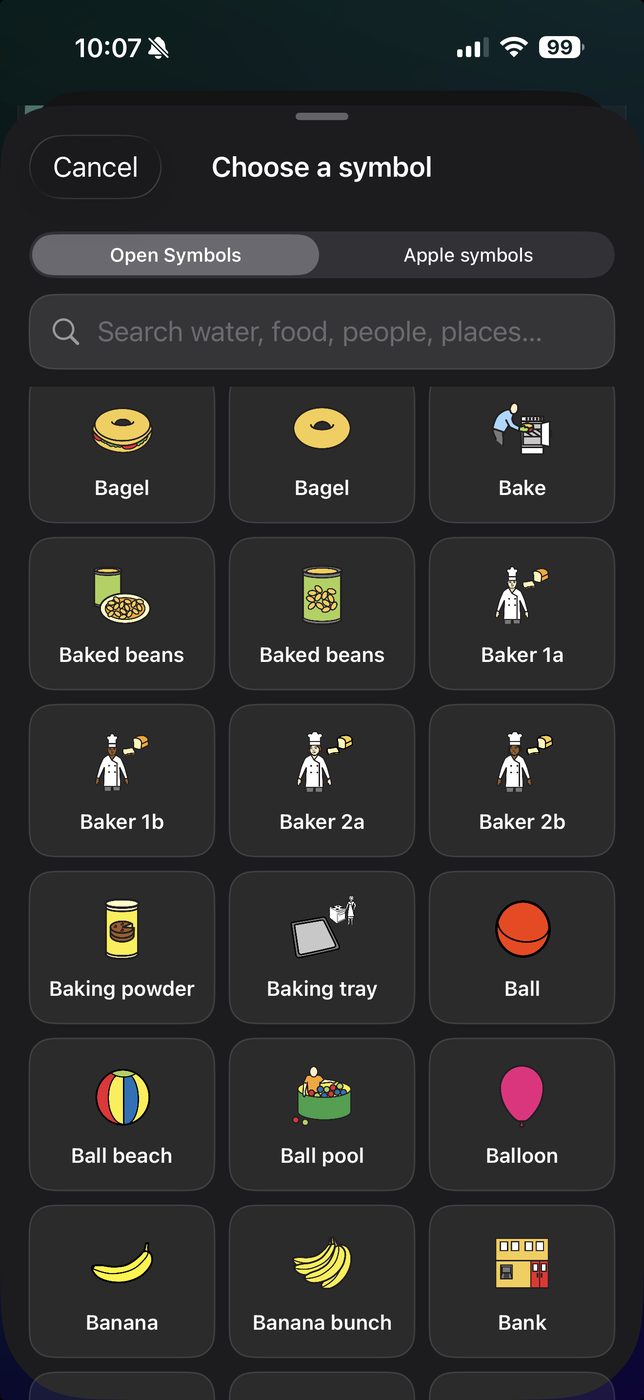
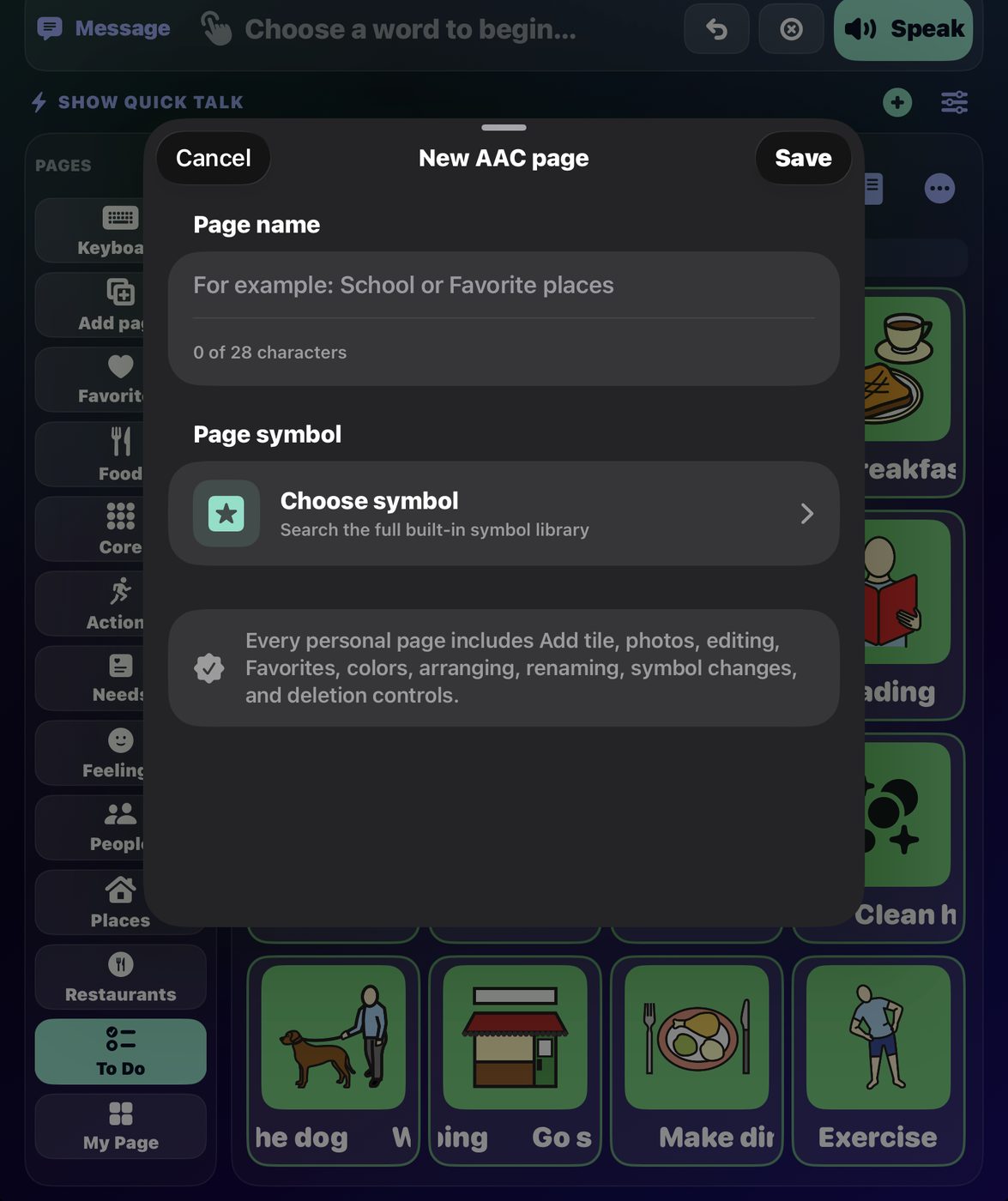
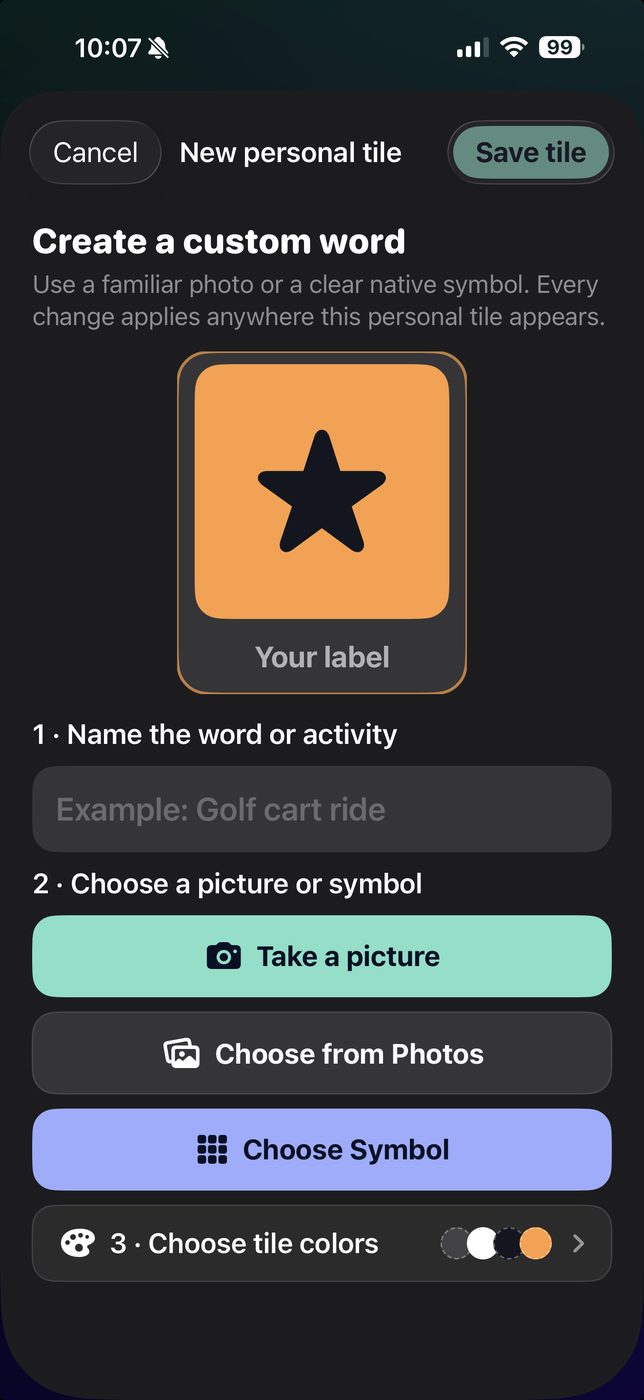
A tile for "Grandma" works far better when it is a photograph of Grandma. Build a tile from the camera, from a photo already on the device, or from the built-in symbol library — searchable by what you mean, not by filename.
- Up to 100 named pages, each with its own symbol and its own tiles.
- Symbol search across thousands of built-in symbols — type "water", "food", "people", "places".
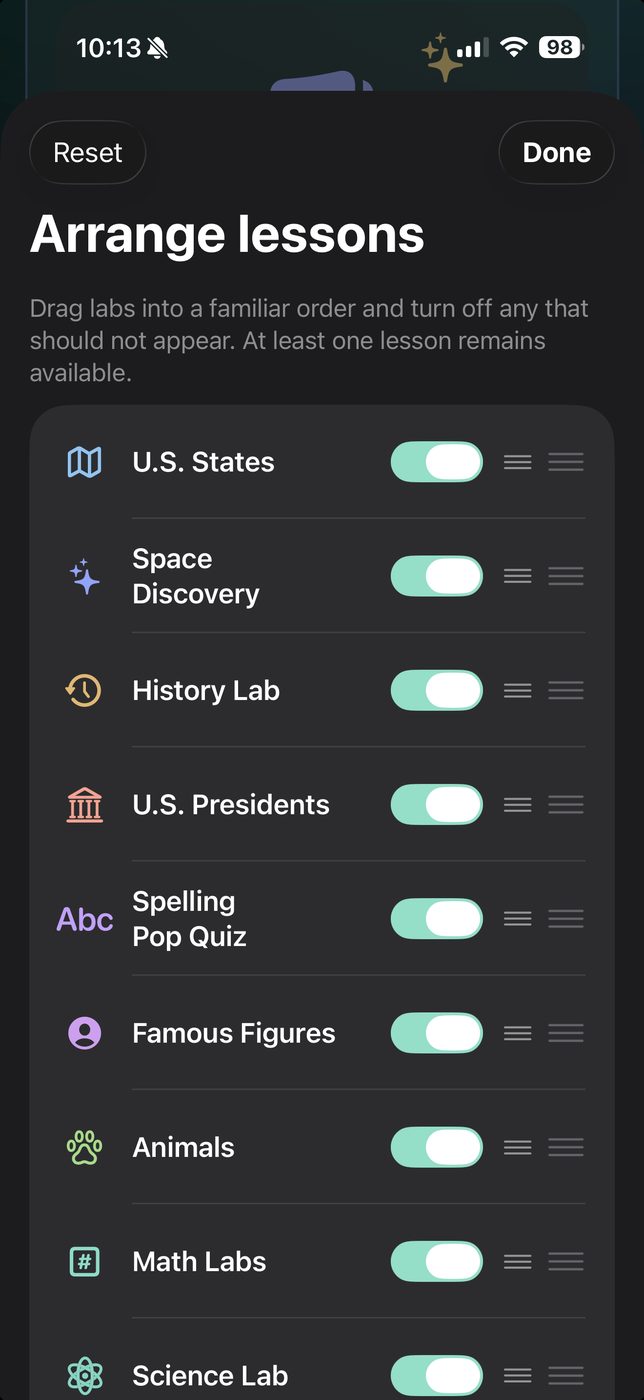
- Drag to reorder pages, tiles, Quick Talk phrases, and lesson subjects. What a learner uses most can sit where their hand already goes.
- Photos never leave the device. They are resized and stored locally, and are never uploaded or attached to any request.
To-Do page
Routines that speak for themselves.
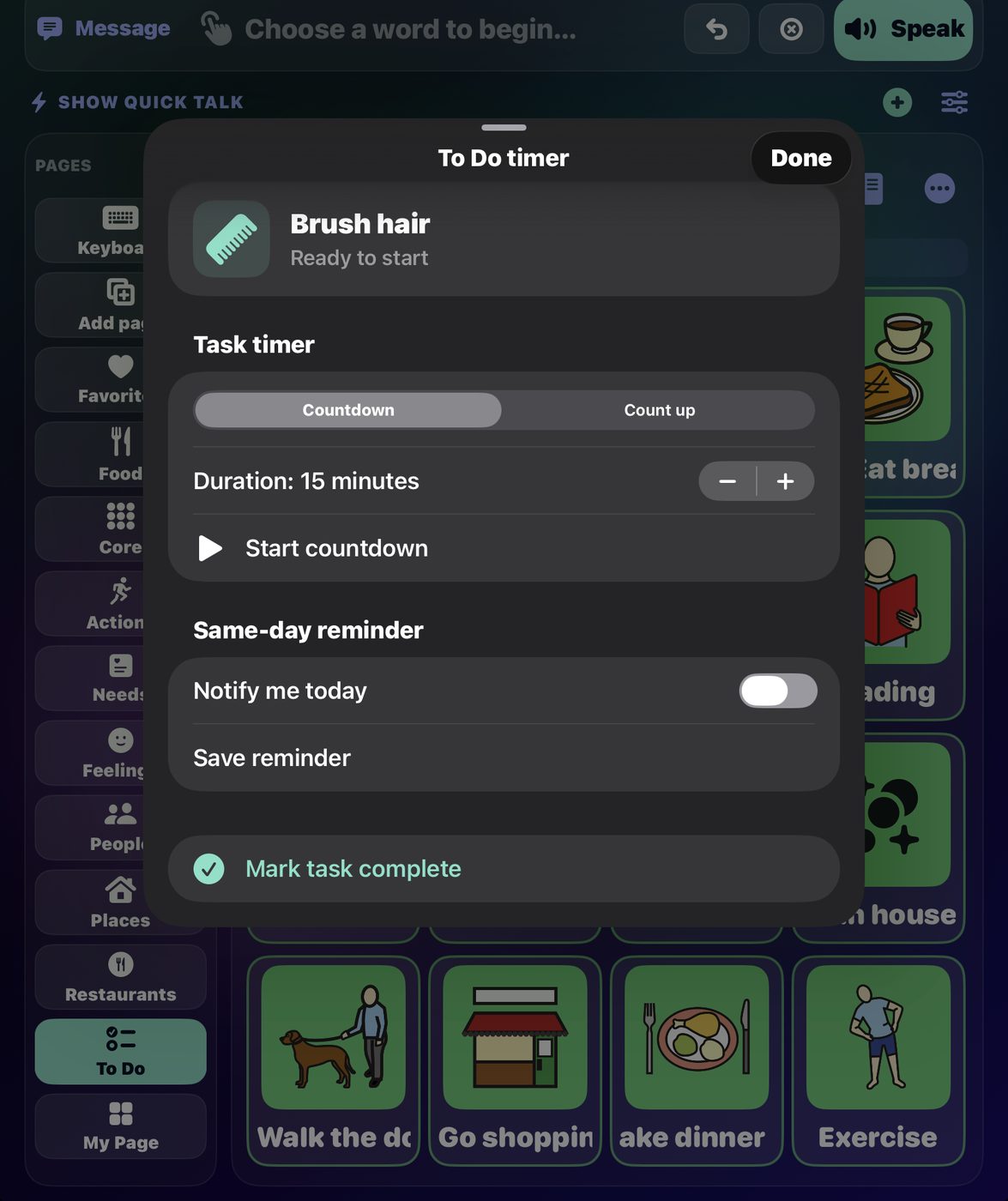
Communication is not only sentences. The To-Do page turns a routine into tiles a learner can work through independently — and each task carries its own timing, so "five more minutes" is something the iPad shows rather than something an adult has to keep repeating.
- Same-day reminders. Set a time and the task announces itself.
- Countdown timers for the thing that has to end — screen time, a turn, a break.
- Count-up timers for the thing that has to be sustained — brushing, tidying.
- Mark complete, so the sequence is visibly finishing.
Transitions are where a lot of days come apart. This is the part of the app built for them.
Access
Eye Tracking, dwell, and targets worth aiming at.
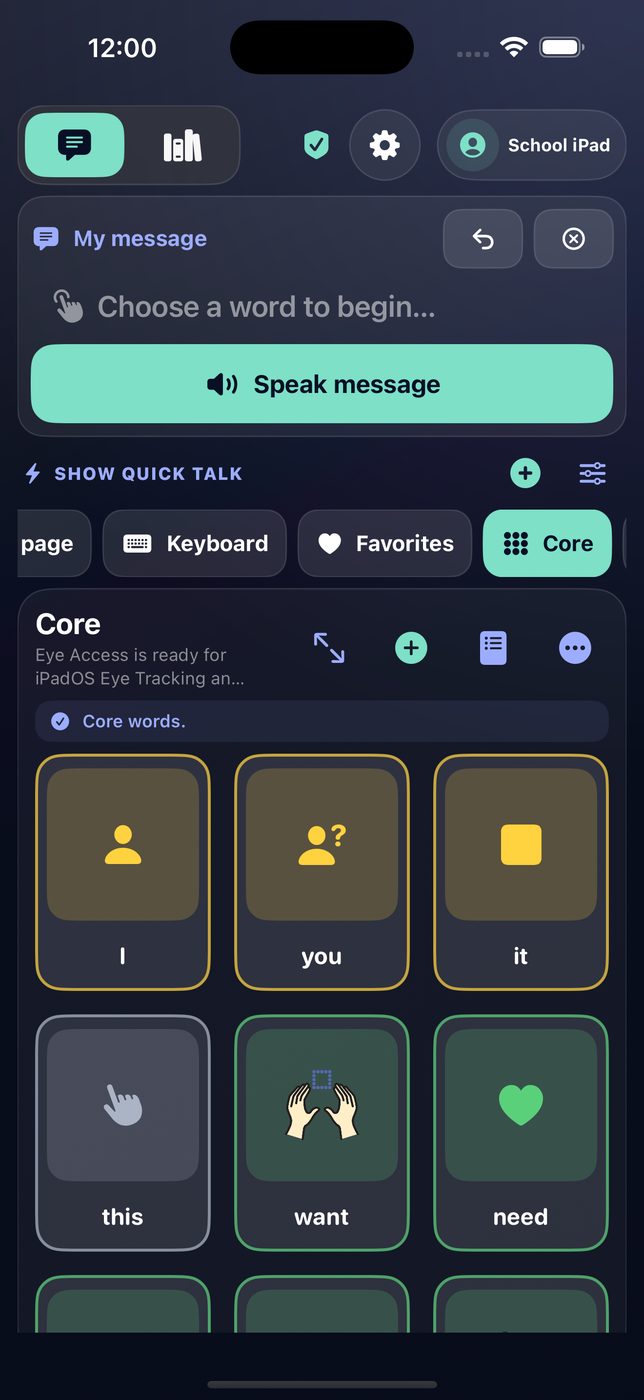
SteadyTouch works with Apple's system Eye Tracking and Dwell Control on iPadOS. Calibration, gaze estimation, and pointer control are handled entirely by iPadOS on the device — SteadyTouch receives only the resulting ordinary activation, and never sees or stores face images or gaze data.
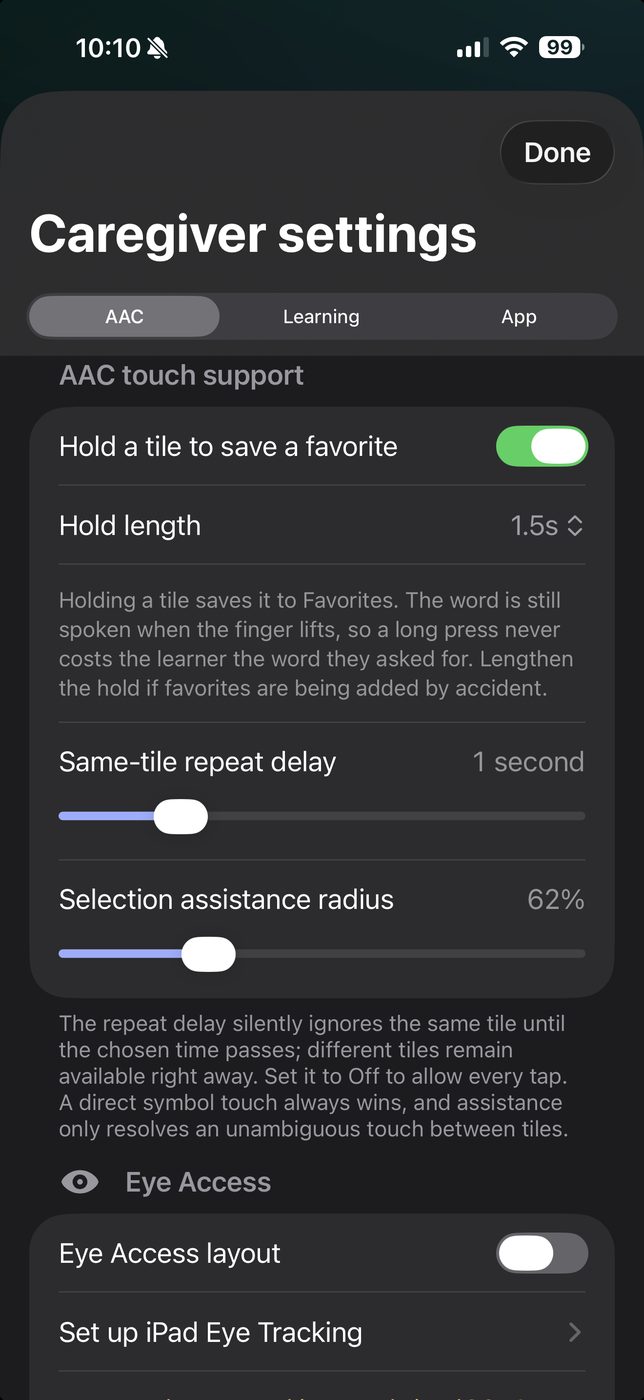
What the app contributes is the target. Eye Access mode drops the grid to larger tiles with clear separation, so a dwell lands where it was meant to and a near miss stays recoverable rather than becoming a wrong word spoken out loud.
Two to five tiles per row
Fewer, larger targets for developing motor control; more, smaller ones as precision grows.
Symbols and labels to 200%
Scale the picture and the word independently of each other.
Adjustable touch assistance
Decide how forgiving a near miss is — and whether adjacent keys are accepted at all.
VoiceOver and Dynamic Type
Supported throughout, including the board and the lesson keyboard.
A-Z or QWERTY
Pick the layout the learner already knows; it applies everywhere.
Low, Balanced, High Sensory
One control that shifts color intensity, motion, and feedback together.
Apple Watch
The essential phrases, on a wrist.
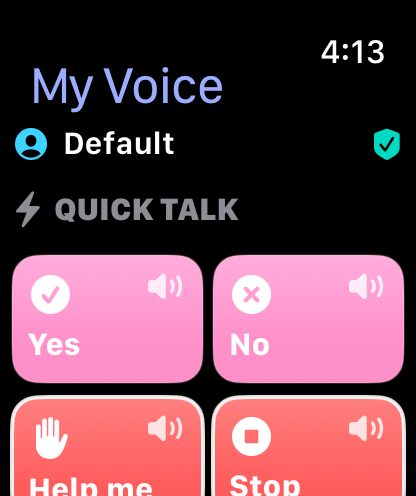
An iPad is not always in hand. The SteadyTouch watch app carries Quick Talk and your pages, speaks from the watch itself, and can build a full message across pages before speaking it — so "I need help" is reachable in a corridor, a car, or a pool changing room.
- Quick Talk on the wrist. Yes, No, Help me, Stop, I need a break.
- Every page, navigable. Tap a page, tap a phrase, it speaks.
- Build a message across pages, then speak the whole thing.
- A complication. Keep one important phrase one tap from the watch face.
Voice
Voices that sound like the person using them.
SteadyTouch ships with a full neural speech model on the device — not a robotic system voice, and not a cloud service that stops working on a bad connection. Nothing spoken is ever sent anywhere.
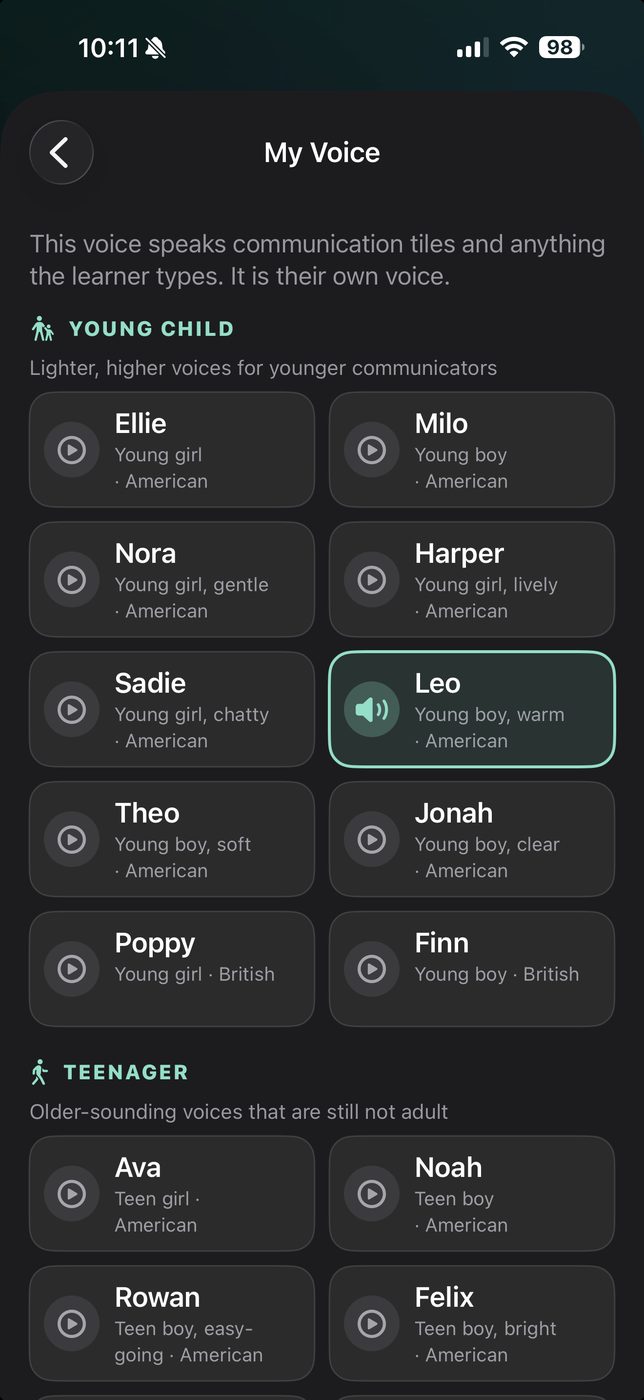
Twenty voices are included, grouped by how old they sound: young child, teenager, and adult, in American and British accents. A communicator who is eight should not have to speak in the voice of a forty-year-old.
- On-device synthesis. No audio, and no text, leaves the device.
- A separate narrator voice for lessons, so a story does not sound like the learner reading to themselves.
- Adjustable pace, independent of the voice.
Stories & Learning
Reading practice that meets a learner where they are.
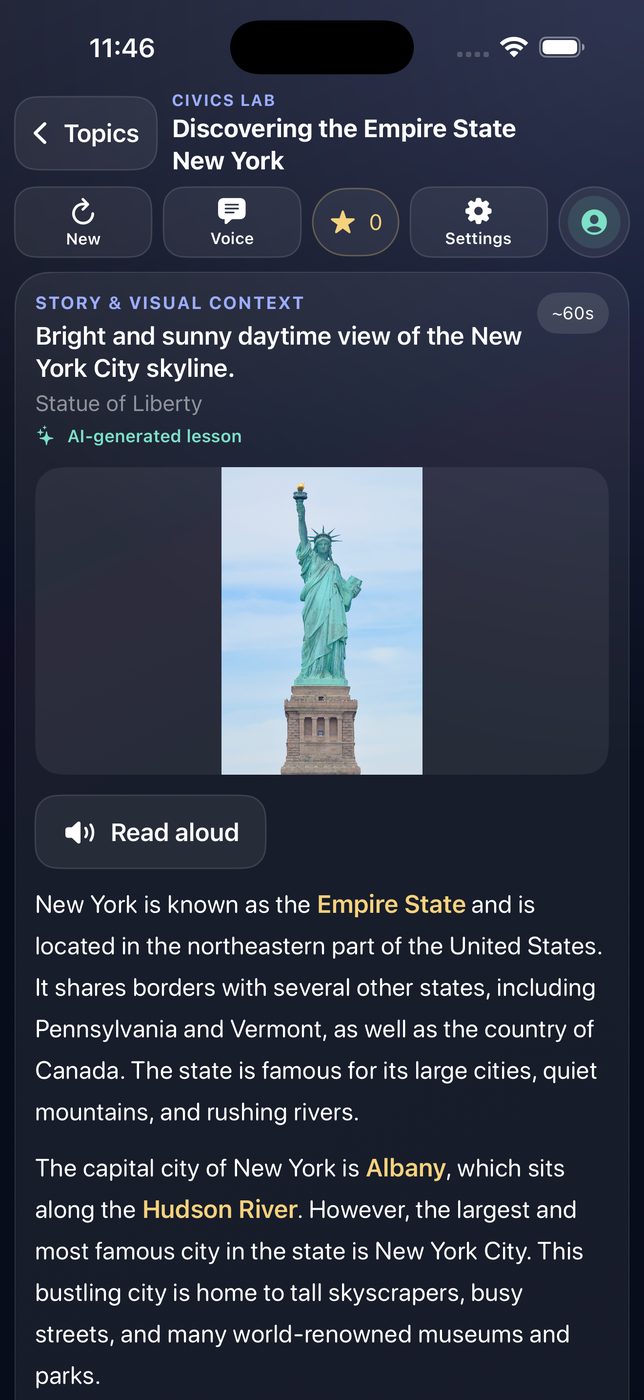
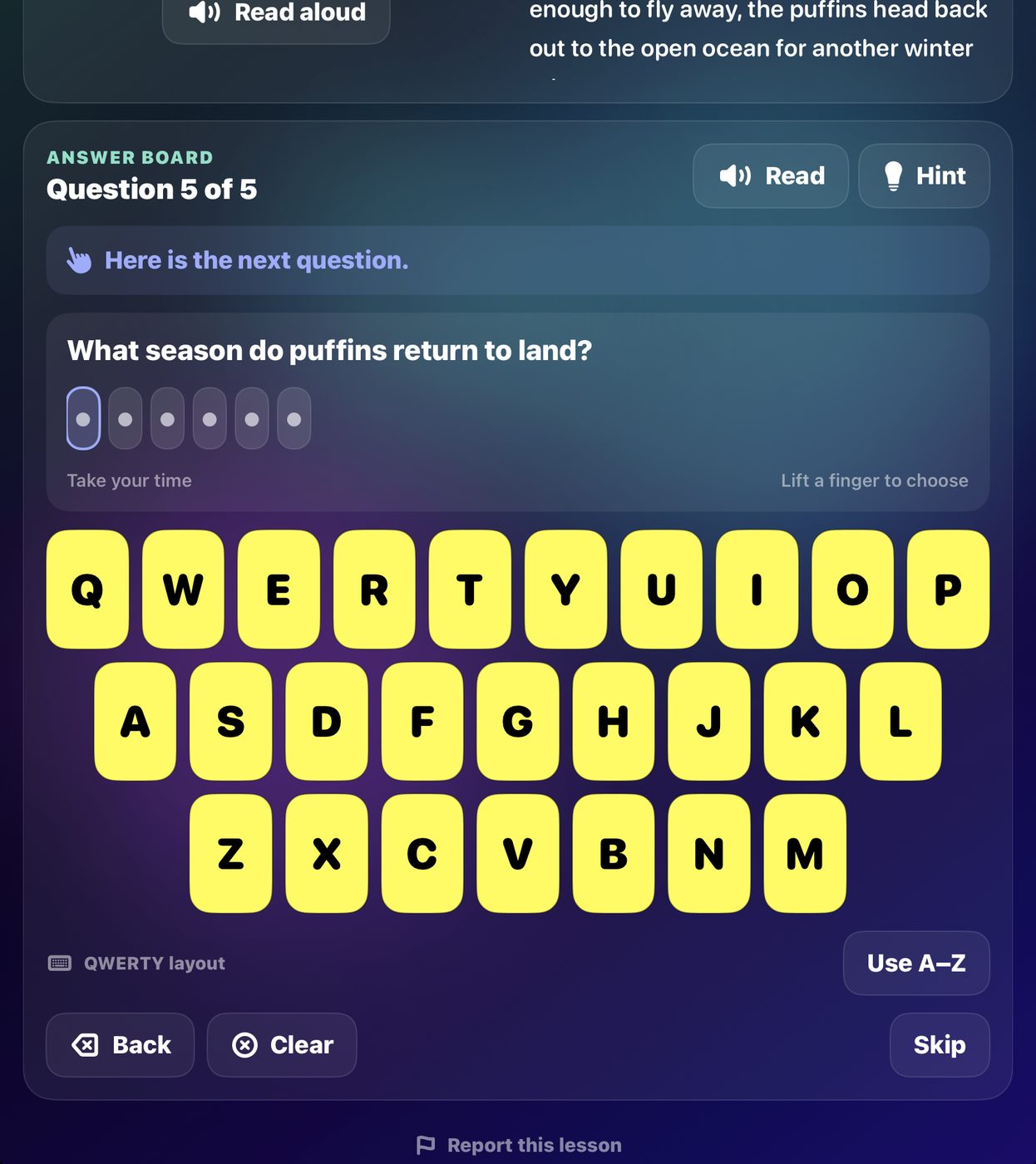
Optional, and entirely separate from communication. Pick a subject and SteadyTouch writes a short passage with questions, read aloud with each word highlighted as it is spoken — and answer words spelled out as they are reached, so "White House" is heard as W-H-I-T-E, H-O-U-S-E.
Answers are given on the same large letter and number board used everywhere else. There are no buzzers, no countdowns, no streak penalties, and no ads — a wrong answer gets a direction, not a failure.
- Beginner mode highlights the expected key, so a learner can succeed at the motor task while still doing the reading.
- Coaching that knows the difference between a finger one key off — "Ohh so close, next door to the left" — and a lost question, which gets re-read instead.
- Progress read back aloud: "What comes after A-P-P-L?"
- Turn off any subject you do not want offered, and drag the rest into order.
- Animals
- Science Lab
- History Lab
- Space Discovery
- Famous Figures
- Math Labs
- Spelling Pop Quiz
- U.S. States
- U.S. Presidents
- Health & Wellness
- Music
- Bible
For the adult in the room
Everything tunable, nothing tunable by accident.
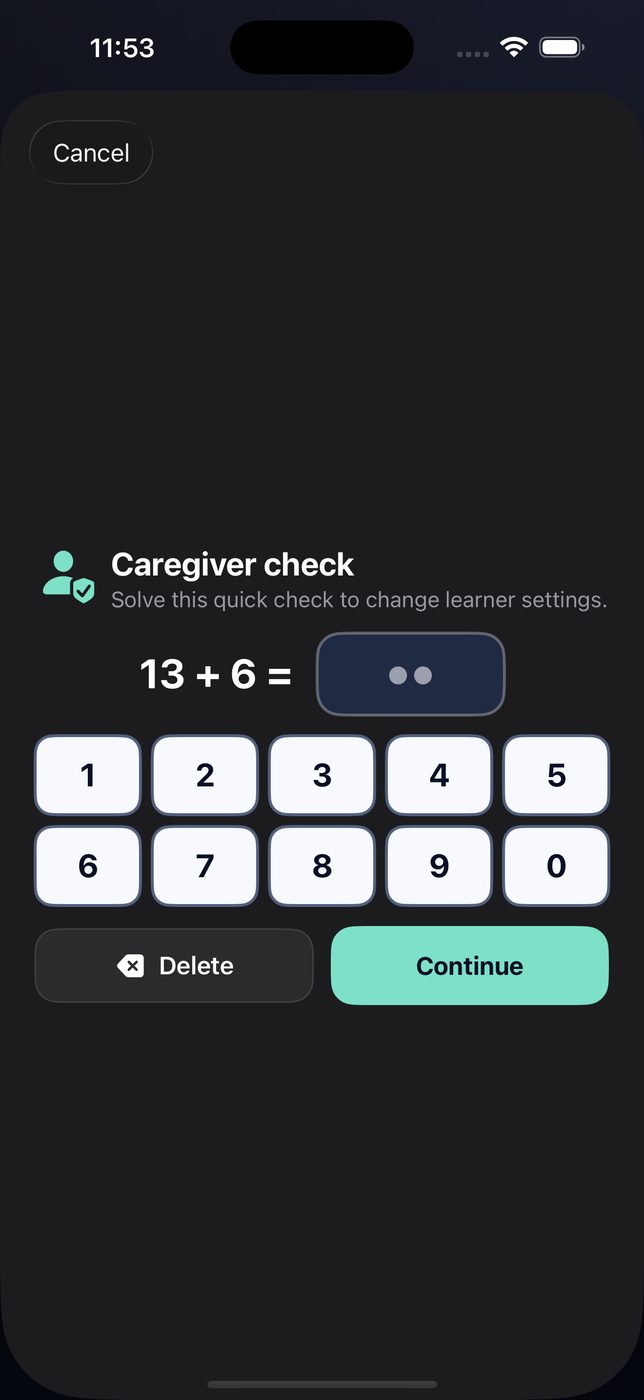
Caregiver settings sit behind a short arithmetic check, so a learner exploring the screen cannot rearrange their own board. Changing a setting never re-shuffles a layout underneath someone who has memorized it.
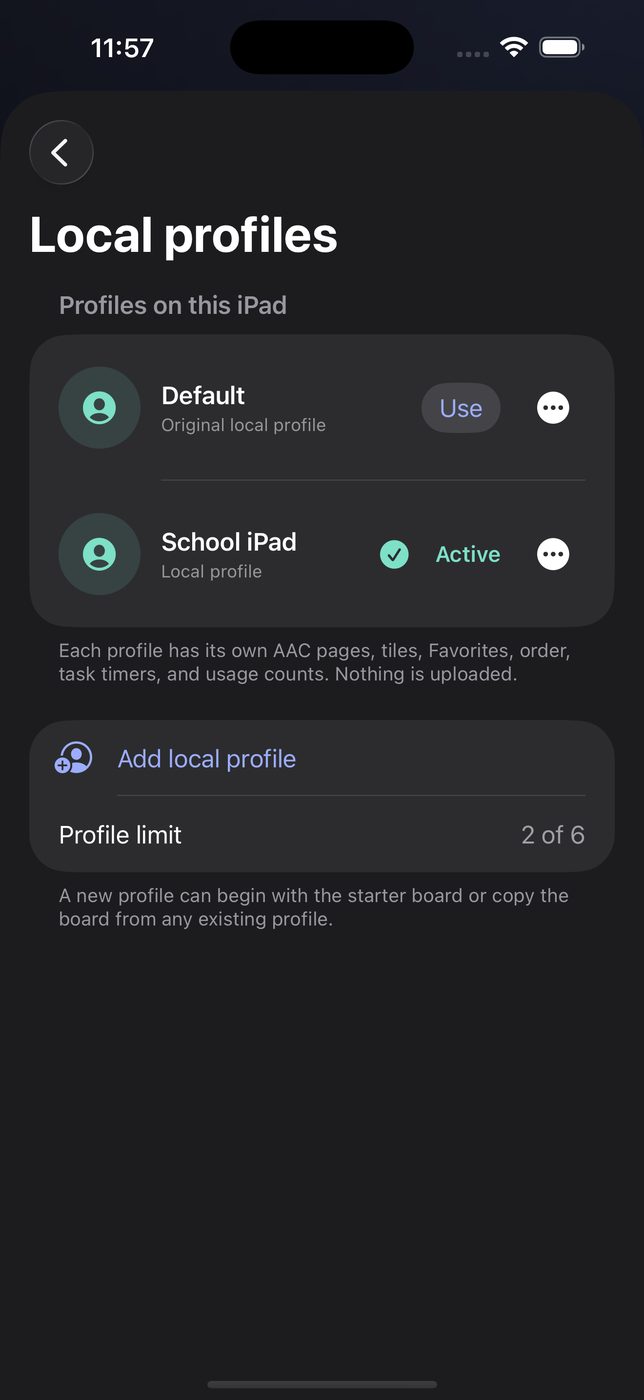
Separate learner profiles
Each with its own vocabulary, voice, difficulty, and settings. Useful in a classroom.
Ten themes, plus custom colors
Including high-contrast, for a learner who needs edges rather than shading.
Page and tile organizer
Independent on/off switches and drag ordering for pages, tiles, and Quick Talk.
Reported lessons
Review anything flagged, and share the list with us so the rules improve for everyone.
Adjustable favorite hold
Lengthen the press-and-hold, or switch it off for a learner with tremor.
Reduce Motion
Honored system-wide. Nothing animates that does not need to.
Trust
What we do not do.
SteadyTouch is used by children, often without an adult watching every screen. That shapes what the app is allowed to contain.
No SteadyTouch advertising
We do not sell ads or sponsored lessons. Optional videos are supplied by YouTube and may contain YouTube-controlled content or advertising.
No accounts
No sign-in, no email address, no learner profile uploaded anywhere.
No analytics or tracking
No third-party analytics SDK, and no cross-app tracking of any kind.
Communication stays private
AAC messages, free-form text, and lesson answers are never transmitted. Custom photos never leave the device.
Filtered lesson content
Generated lessons pass platform safety filters at their strictest setting, plus an on-device check across every field, before anything is shown.
A real way to report
One tap in the app, and a monitored address with published response times.
Lessons in Stories & Learning are written by a generative AI model at the moment you ask for one. Generation sends the topic, difficulty, recent subjects and any caregiver-entered Interest Lab subject to the lesson provider. AI content can still be wrong — so lessons are meant to be used with an adult nearby, and reporting one takes a single tap. The privacy policy explains what is sent and to whom, including YouTube video search and playback, and Report Content covers how we respond.
Who it is for.
Families
A communication system that works on the iPad already in the house, without a subscription or a procurement process.
Classrooms
Separate profiles per learner, adjustable density and reading level, and content controls a teacher can set once.
Speech-language professionals
A deterministic board with configurable density and touch assistance, useful for trialling before committing to a dedicated device.
SteadyTouch supports learning and communication. It is not a diagnostic tool, a medical device, or a replacement for individualized professional care.
Questions before you buy?
Ask them. We would rather answer honestly up front than have SteadyTouch turn out to be the wrong fit for your learner.
[email protected]